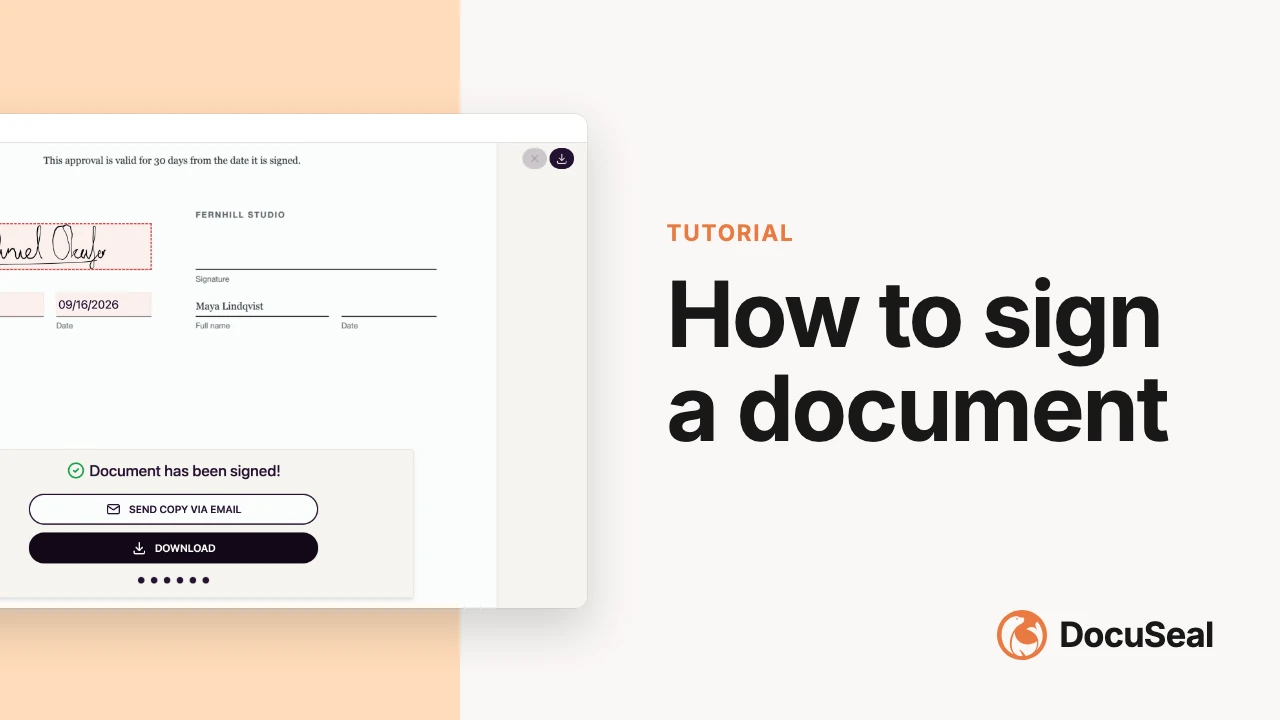
Sign a document
DocuSeal allows you to sign a document sent to you right in your browser. You don’t need a DocuSeal account, a password, or an app to sign, and the steps are the same on a computer and on a phone.
To sign a document:
- Open the signature request email and click Review and Sign.
- If the sender requires 2FA, confirm your phone number or complete email 2FA.
- Review the document before filling it in. The signing page gives you these controls:
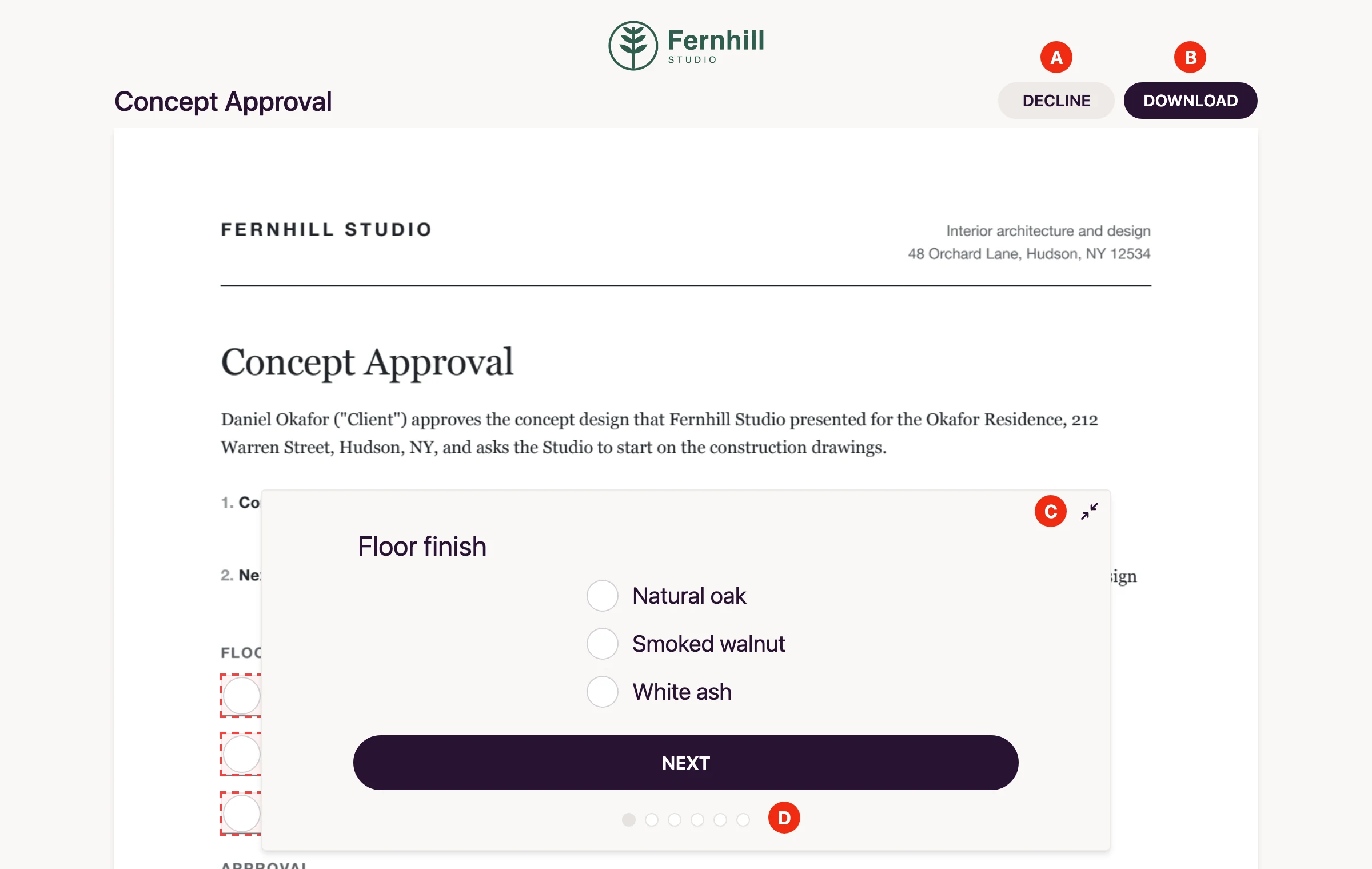
- A. Decline: refuse to sign the document and give the sender a reason.
- B. Download: save the document before signing it.
- C. Minimize: hide the form to read the whole document. Click Continue to bring the form back.
- D. Steps: jump to any field by clicking its dot. There is one dot for each field.
If the sender allows it, a Delegate button next to Decline lets you pass the document to another person.
- Fill in the highlighted field and click Next. Repeat for each field.
- If the document has a signature field, draw your signature. You can also click Type to type it or Upload to use an image of it.
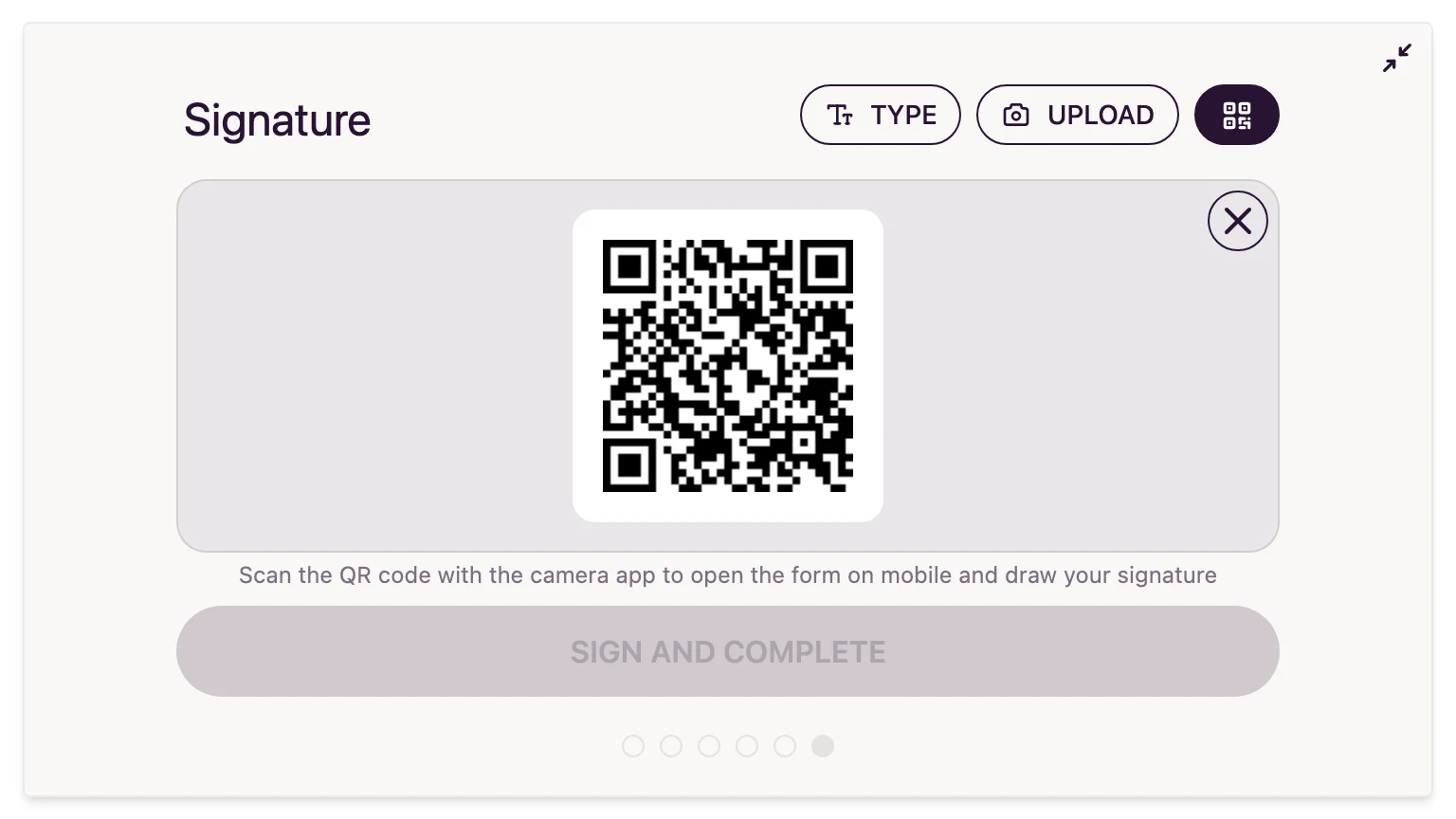
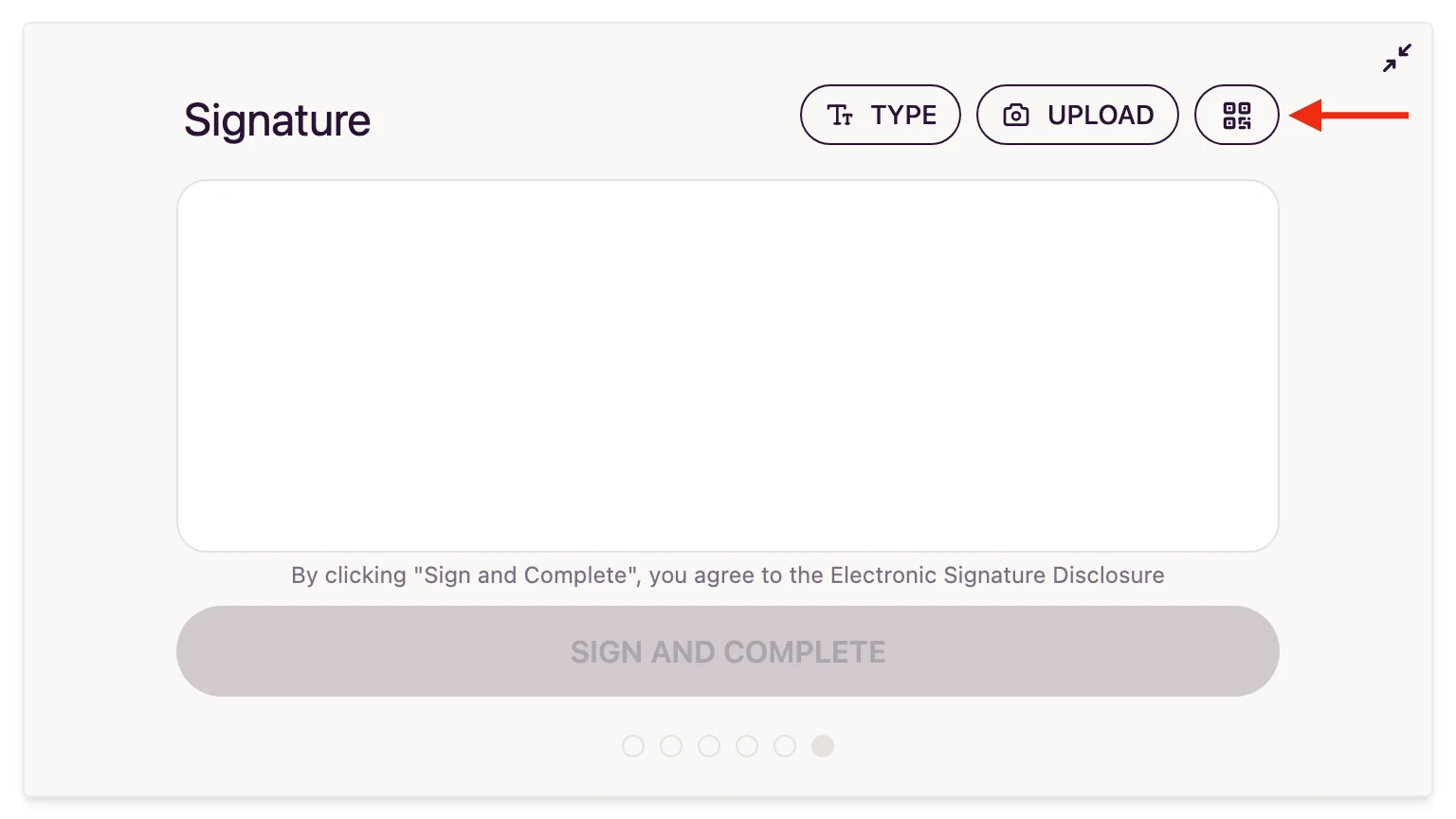 To draw your signature on a phone instead, click the QR code icon, scan the code with the camera app, and sign on the phone. The signature appears in the form when you finish.
- Click Sign and Complete, or Complete if the document has no signature field.
- Click Download or Send copy via email to keep a copy of the signed document. DocuSeal also emails you a copy with the audit log attached.