Automate with Hermes AI agent
DocuSeal lets Hermes Agent manage templates, send documents for signing, track status, and handle signers using dedicated agent skills.
Installing the DocuSeal skill in Hermes Agent
The skill relies on the DocuSeal CLI, which the agent uses to interact with the DocuSeal API. Open your terminal and run:
npm install -g docuseal
Then install the skill:
hermes skills install docusealco/docuseal-agent-skills/skills/docuseal-cli
- Open the DocuSeal Console and grab your API key: console.docuseal.com/api.
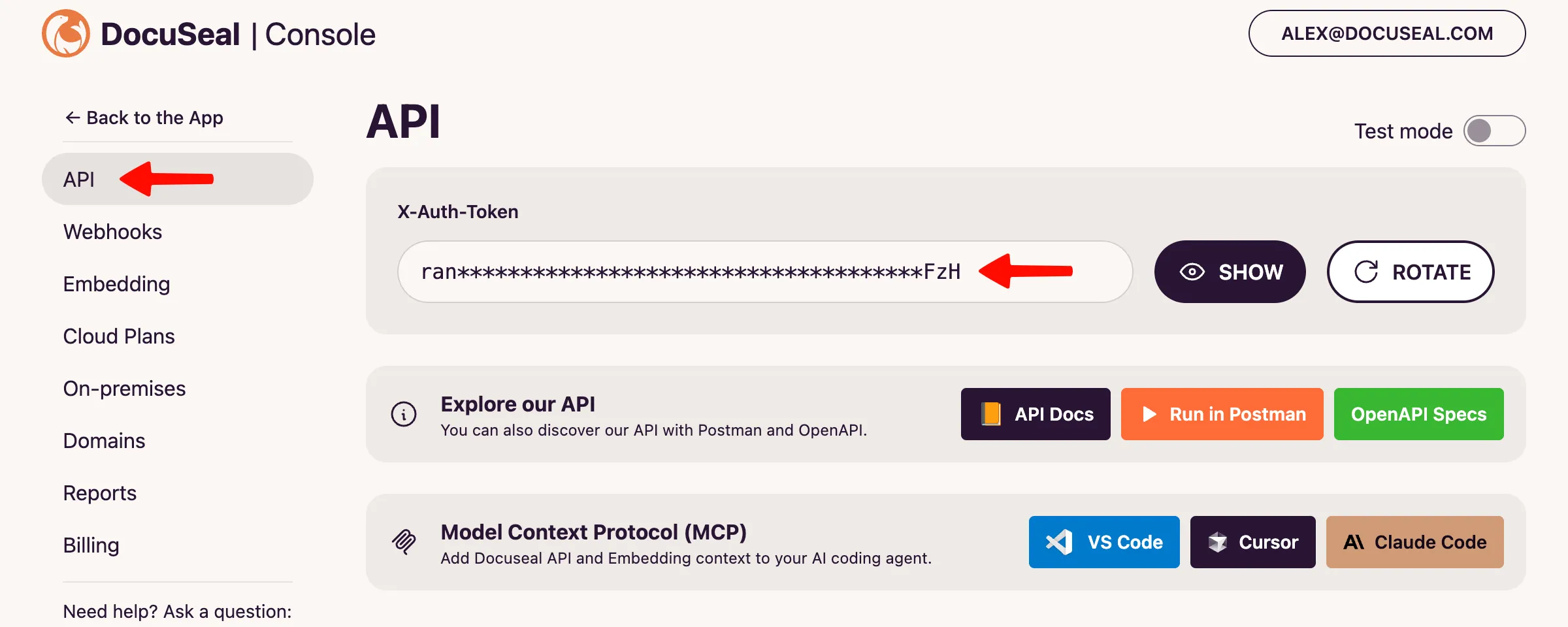
- Run hermes and ask the agent to show your templates. If Hermes asks for setup details, answer as follows:
- DocuSeal API key - paste the key from the DocuSeal Console.
- DocuSeal server - type global for the global cloud, europe for the EU cloud (docuseal.eu), or the URL of your self-hosted instance (e.g., https://docuseal.yourdomain.com).
Hermes saves the answers for future sessions and never exposes the key to the model. Do the first request in the terminal or in Hermes Desktop, because messenger chats can’t collect setup details. After that, use the agent wherever you prefer: hermes desktop, or hermes gateway for Telegram, Discord, WhatsApp, Slack, and other messengers.
Verification
Ask the agent:
Show me my DocuSeal templates
If the agent responds with a list of your templates, you’re all set.
Automating your workflows
Let’s walk through what the DocuSeal skill can do by following a typical client onboarding flow: creating a contract template, sending it out, and confirming a completed signature.
Step 1. Create a contract template
Say you need a service agreement template. Just ask the agent to create one:
You:
Create a service agreement template with fields for client name, company, monthly fee, start date, and signatures for both provider and client.
Agent:
Created template “Service Agreement” (ID: 1234) with 6 fields: Client Name, Company, Monthly Fee, Start Date, Provider Signature, Client Signature.
The template is ready. If you already have a PDF contract on hand, you can say “Upload service-agreement.pdf as a new template” instead, and the agent will create a template from the file.
Step 2. Send the contract to a new client
A new client comes in. Give the agent their details and it will find the right template, fill in the fields, and send it off:
You:
New client: Anna Chen, anna@clientco.com, company ClientCo, $2,500/month. Send her the service agreement starting July 1st.
Agent:
Sending “Service Agreement” to anna@clientco.com with pre-filled fields: Client Name: Anna Chen, Company: ClientCo, Monthly Fee: $2,500, Start Date: July 1st.
Done. Submission ID: 3456. Anna will receive the signing link by email.
Anna gets an email with a link to the contract where all the fields are already filled in. She just needs to sign.
Step 3. Check the status
A few days later, you want to know if Anna has signed:
You:
Did Anna Chen sign her contract?
Agent:
Not yet. Submission 3456 (Service Agreement) — sent 3 days ago, status: awaiting.
Step 4. Send a reminder
Anna hasn’t signed yet, so ask the agent to nudge her:
You:
Can you send a reminder to Anna?
Agent:
Done, reminder sent to Anna.
If the client changed their email, you can update it and resend in a single message: “Anna changed her email to anna.chen@newdomain.com. Update and resend.”
Step 5. Confirm the signature
You:
Any contracts completed today?
Agent:
1 completed today: Anna Chen (anna@clientco.com) — Service Agreement, signed 2 hours ago.
Onboarding complete. The entire process took 5 messages to the agent instead of manual work in the UI.
What else the agent can do
Beyond the basic flow above, the agent supports more advanced scenarios:
- Multiple signers with ordering: “Send the agreement to bob@example.com as Client and legal@ourcompany.com as Provider. Client signs first.” Once the client signs, the agent automatically sends the contract to the next signer.
- Custom email subject: “Send with subject: Your Service Agreement with Acme Corp”.
- View all pending contracts: “Show me all pending contracts”.
- Detailed submission info: “Show me details of submission 3456” (template, signer statuses, field values, document URLs).
- Search templates: “Show me templates with ‘NDA’ in the name”.
- Scheduled checks: Hermes can run tasks on a schedule, so ask “Every morning at 9, tell me which contracts are still unsigned” and get a daily digest.