Redact a document
Redaction lets you permanently remove sensitive information from a document, such as personal data, account numbers, or confidential text, before sending it for signature. With true redaction, the content is removed from the PDF, so it can’t be recovered or copied from the final document.
To redact a document:
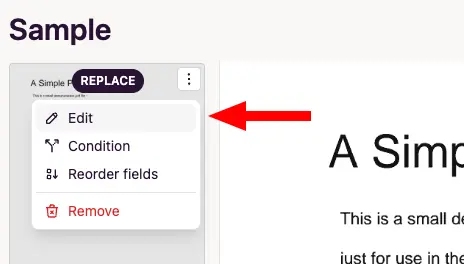
- Open the template, click the menu () icon on the document in the left sidebar, and select Edit to open the document editor.
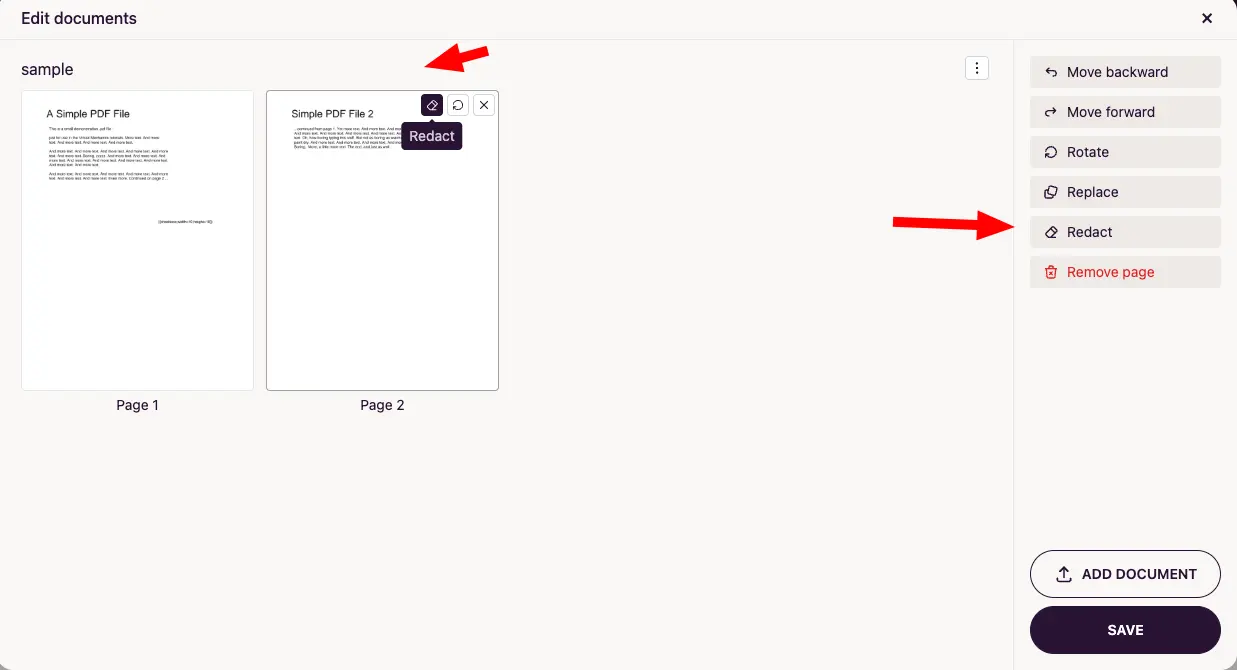
- Hover over the page you want to edit and click the Redact icon, or select Redact from the menu on the right.
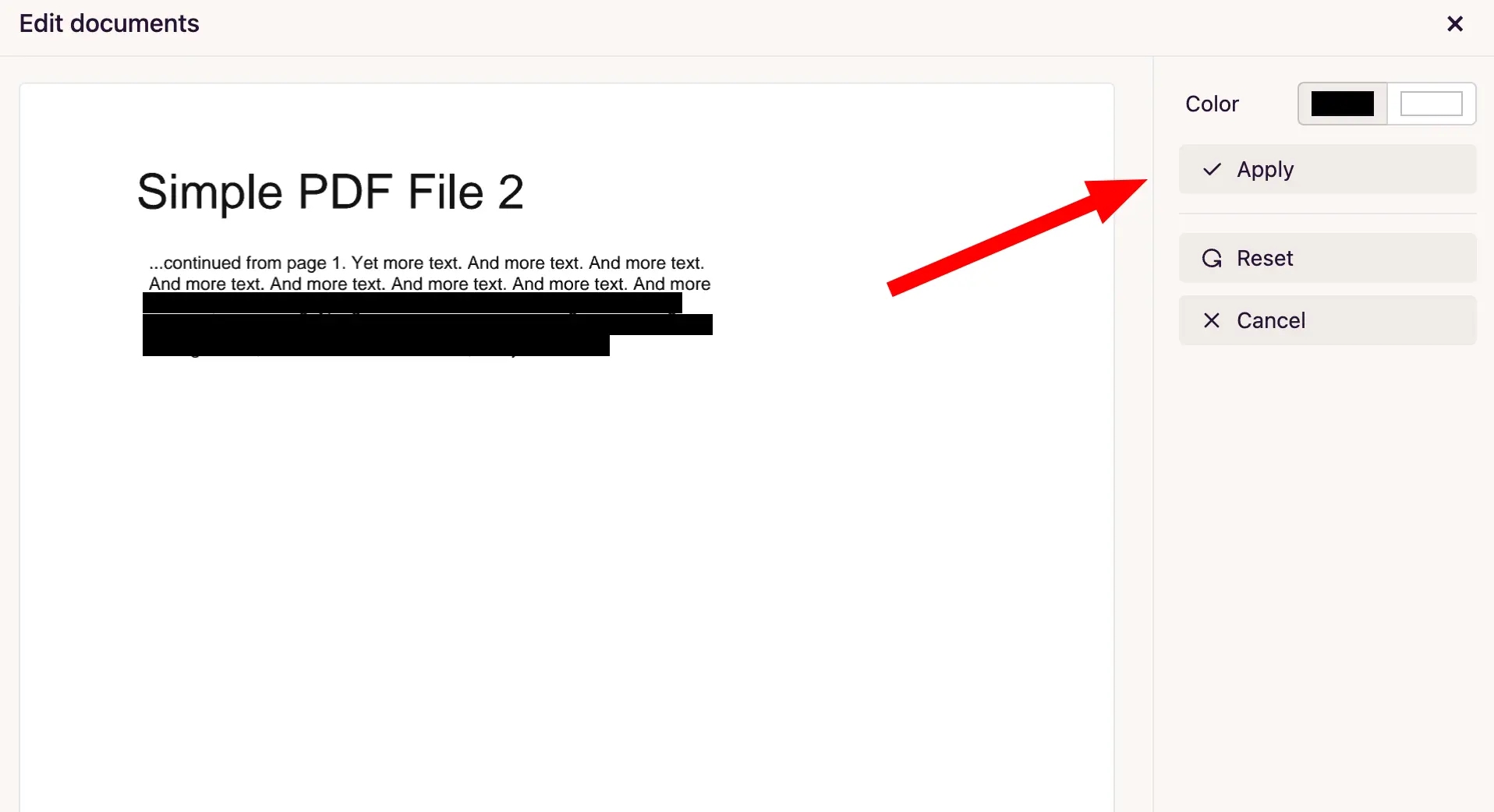
- Click and drag to draw rectangles over the content you want to hide. You can choose black or white as the redaction color. Click Apply to confirm the redactions.
- Click the Save button in the bottom-right corner of the document editor to save your changes.
Note: With true redaction, the underlying text elements are permanently removed from the PDF, so they can’t be selected, copied, or recovered, and affected images are regenerated with the redacted areas erased from the pixels themselves.