On-premises Pro installation
DocuSeal Pro On-premises runs on your own server. Pro is a separate, private Docker image. To switch from free to Pro, replace the free docuseal/docuseal image with the Pro image.
Get started with Pro on-premises
The installation instructions are available after you purchase a Pro On-premises license. Open the On-Premises License page in your DocuSeal Console at console.docuseal.com/on_premises and follow the instructions there.
To buy a license, see Get started with Pro.
The Pro image is hosted in a private Docker registry at ee.docuseal.com, different from the public docuseal/docuseal image.
How license registration works
Registration connects your running DocuSeal Pro installation with your license. The license is issued and managed in the DocuSeal Console.
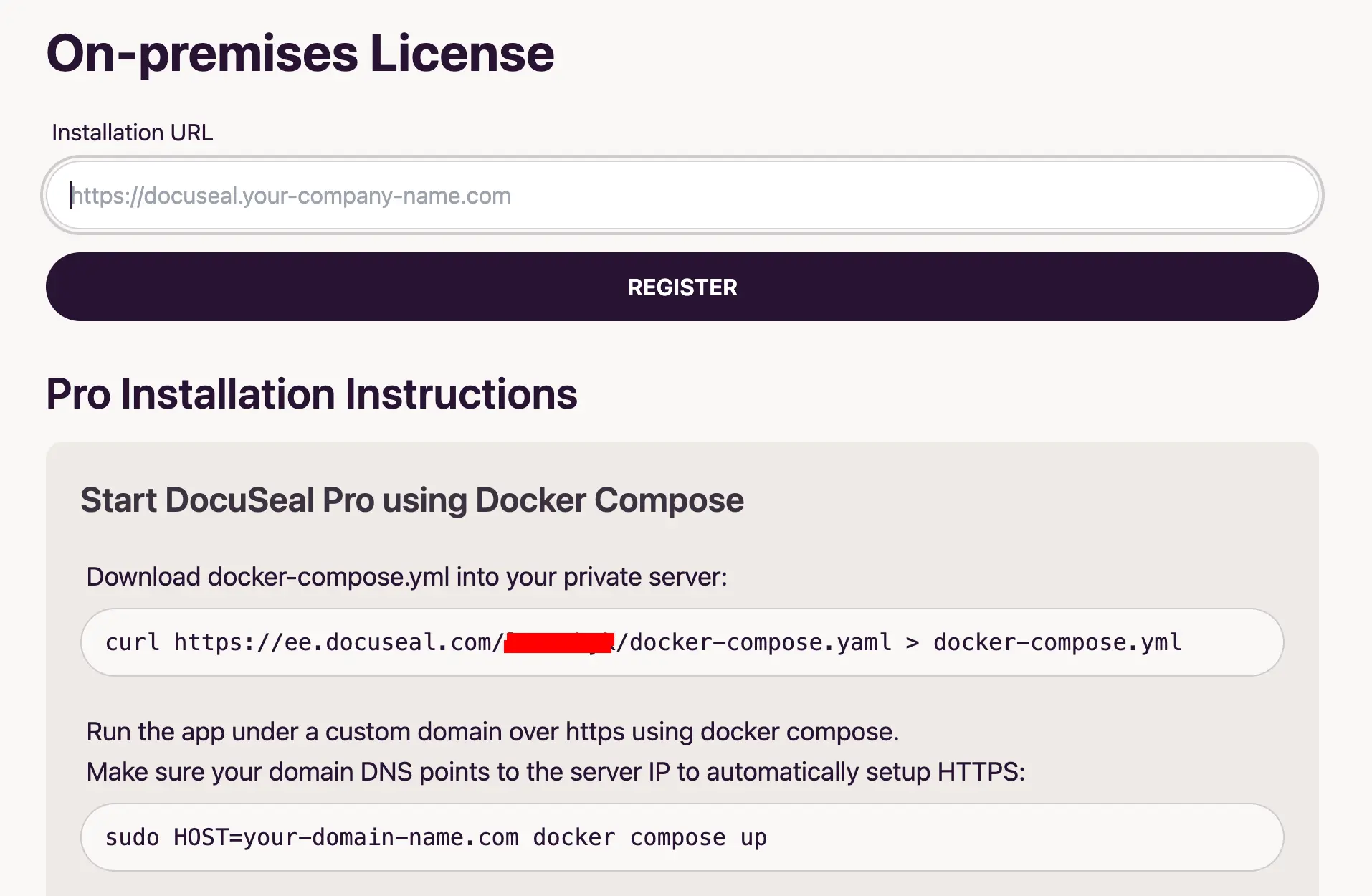
- Open the On-Premises License page in the DocuSeal Console.
- Enter your installation URL (for example,
https://docuseal.your-company-name.com) and click Register. - The license is applied remotely via the
/eeendpoint of your installation. The endpoint is authenticated with the license key, and only the DocuSeal license server can call it after the license has been registered. - Your DocuSeal Pro installation accepts the license and responds with its status. The console then saves the installation URL as the registered host.
The license server also calls the same /ee endpoint daily to collect usage statistics, such as the number of users, templates, and submissions, for automated billing purposes.
License and billing endpoint requirements
- HTTPS is required. The installation must be served over HTTPS on port 443 with a valid certificate. HTTP, custom ports, and localhost cannot be registered.
- Allow the license server IP addresses. Allow inbound HTTPS traffic to your installation from the license server IP addresses:
52.5.249.10352.30.226.117
If a firewall, load balancer, or security group blocks these addresses, registration and usage statistics will fail.
- Users limit. The number of registered users must not exceed the users limit of your license. If it does, the registration is rejected and the license is deactivated until you upgrade your plan.
Staging license
Each Pro On-premises license includes one production license and one staging license at no extra cost. Staging is not billed per API/embedding completed document.
- Production is registered first, using the Register form on the On-Premises License page.
- Staging can be registered only after a production installation is registered. Once production is registered, click the Staging button next to the production host, then enter the staging installation URL.
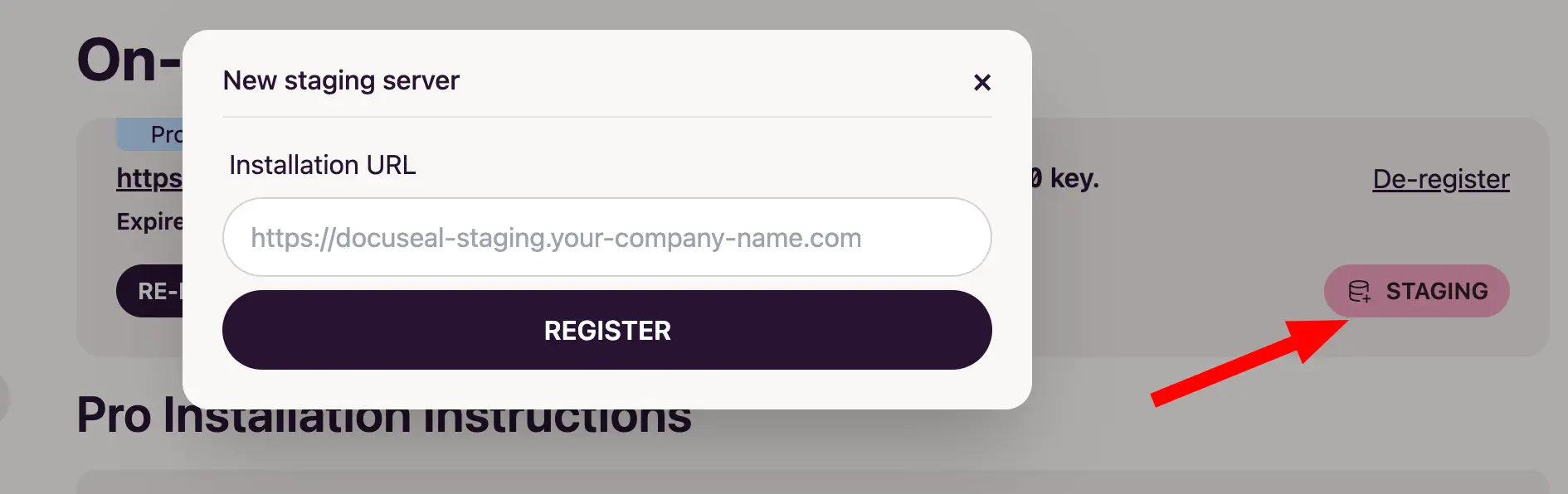
For more details, see How to register a staging On-Premises license?.
Subscription and Billing
Subscription and billing metrics are collected daily from the /ee endpoint by the license server. Completed API/embedding submission costs $0.20 per completion. For more details, see the DocuSeal pricing page.
Invoices for per API/embedding completed submissions are issued at the end of each monthly billing period, and payments are collected automatically using the attached payment method.
To increase the number of Pro users, open console.docuseal.com/manage and increase the number of users in the Subscription management UI. Once upgraded, the license key updates automatically with the new users limit, which makes it possible to add new users in your on-premise app.
Data sharing and Privacy
No customer documents or data is shared with DocuSeal servers from the on-premise installation. The on-premises app is self-contained and does not depend on third-party services or APIs.
When using a DocuSeal AATL signing certificate, only PDF SHA256 checksums and sequential submission IDs are sent to the signing server managed by DocuSeal. Checksums and sequential IDs are stored in the signing server logs.
The /ee endpoint returns only usage metrics and counters. It does not share any private custom data with DocuSeal.
Updating app URL
Before changing the URL of the registered app instance, update the app URL in your installation at /settings/account.
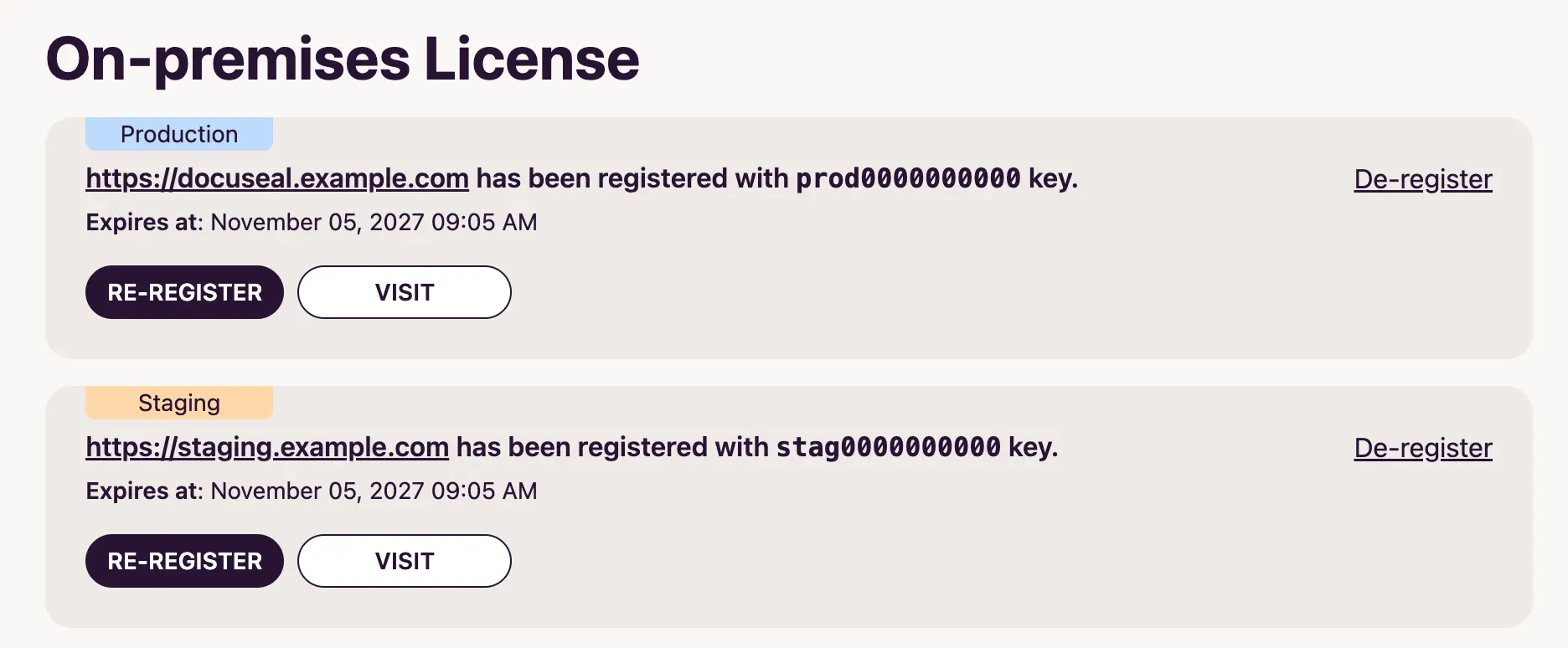
To change the URL of a registered installation, or register a different instance:
- Click De-register on that host.
- Register the new URL.
Clicking Re-register renews the registration for the same URL. De-registering sends a request to /ee that releases the license on your installation. De-registering staging does not affect production.